 Backlsh
Best Screenshot Monitoring Software for Remote Teams (2026)
Compare five screenshot monitoring tools for remote teams by capture controls, privacy, activity tracking, pricing and best-fit use case. Updated for 2026.
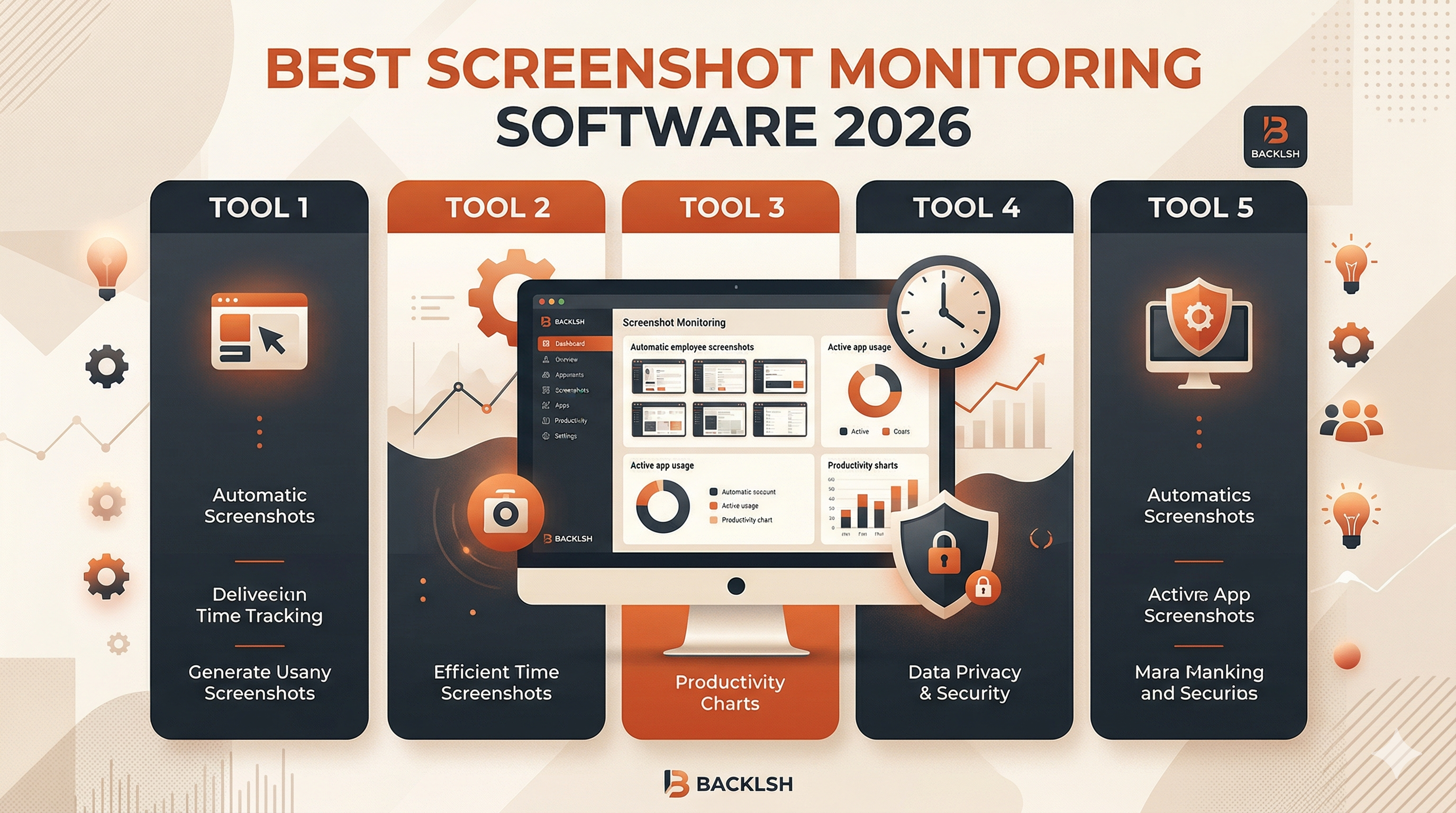
Screenshot monitoring software captures images of a work screen at selected moments. It can add context to a time record, but a screenshot cannot prove how productive someone was or whether a period is billable.
Choose by controls before capture volume: check frequency, sensitive-data handling, employee visibility, access permissions, retention and desktop support. Then pilot the software with the people who will use it.
This guide compares documented product approaches and provides a selection checklist. It is not an independent benchmark or a guarantee of legal compliance. Backlsh is our product. Vendor information was reviewed on 24 October 2026.
Periodic screenshots versus continuous screen recording
| Approach | What it records | Selection consideration |
|---|---|---|
| Periodic screenshots | Still images sampled during tracking | Gaps between captures; no continuous account of the work |
| Screen recording | A sequence of screen activity over an interval | More detailed content collection, storage and access requirements |
| Activity metadata | App names, URLs or input activity, depending on the tool | Less visual detail, but may still expose sensitive information |
Do not buy screen recording when a reviewed timesheet or project report meets the need. Decide what question the record should answer, such as resolving a disputed task allocation, and collect only what supports that purpose.
Screenshot monitoring tools to evaluate
| Tool | Documented starting point | What to verify |
|---|---|---|
| Backlsh | Periodic automatic work screenshots; no keystroke logging described | Exact capture settings, access and retention for your account |
| Hubstaff | Configurable screenshot frequency and blur controls | Screenshot caps, deletion permissions and app-specific support |
| Time Doctor | Screenshots listed in Basic; video recording in Premium | Capture mode, plan and controls needed for your team |
| DeskTime | Screenshots listed in Premium | Capture configuration and operating-system support |
Sources: Backlsh screenshot monitoring, Hubstaff capture settings, Time Doctor plans and DeskTime plans. These descriptions do not imply identical functionality or that every control is available in every tier.
How often should screenshots be captured?
Start from the purpose of monitoring and trial the least collection needed. More images mean more material to store, secure and review; they do not automatically produce better management decisions.
For example, Hubstaff documents randomized captures at one, two or three per ten-minute interval, with separate plan limits and add-ons. Verify actual behavior during a trial rather than assuming screenshots happen at fixed clock times.
Illustrative storage planning: two images per ten minutes across eight tracked hours produces 96 images per person, or 1,920 for 20 people in a day before idle behavior and plan limits. Multiply by expected file size and retention duration when estimating storage. This is arithmetic, not a capture-frequency recommendation.
Can sensitive information be blurred or excluded?
Ask the vendor to demonstrate the controls on your actual operating system. Blur, application exclusion and pausing are different capabilities; do not treat one as a substitute for another.
- Is blur applied before upload, and what remains readable?
- Can a sensitive app, browser window or second monitor be excluded?
- What happens while someone enters a password or opens a personal message?
- Can employees tell when capture is active?
- Does pausing screenshots also pause time tracking?
Use dummy content for the trial. A blurred image can still reveal context through layout, names or metadata, so assess the actual result rather than relying on a “privacy-first” label.
Who can view screenshots and how long are they retained?
Write down who needs access and why. Check whether managers can see only their team, whether downloads create additional copies, and how access is removed when roles change.
| Control | Trial evidence to collect |
|---|---|
| Employee visibility | Employee can locate their own records and understand captured fields |
| Manager access | A sample manager account sees only the intended people |
| Retention | Documented duration, plan limits and deletion behavior |
| Exports | Who can download images and how exported copies are managed |
| Correction process | How disputed captures or time entries are reviewed |
| Off-hours behavior | What happens after tracking stops, including automatic policies |
Deletion can affect associated time records in some systems. Confirm that behavior before enabling employee deletion or relying on screenshots as your only evidence.
Run a representative pilot before rolling out
- Explain what is captured, its purpose, access and retention.
- Test a typical shift with meetings, reading, breaks and project switching.
- Check a personal break and the end of the shift using dummy content.
- Review multi-monitor behavior and permissions on each supported desktop OS.
- Have employees and managers review the same sample record.
- Document gaps, adjust settings and agree a process for disputes.
Do not treat a low mouse-activity reading as proof of inactivity: reading, thinking and meetings can be legitimate work. Validate context and outcomes before making decisions.
Compare the complete cost
Include the plan that actually contains screenshots, any extra capture or retention charges, minimum seats, implementation time and reviewer time. A cheaper base plan can be unsuitable if the needed control sits in a higher tier.
Use our screenshot monitoring cost guide for the budgeting topic, and employee monitoring policy template for rollout planning. Legal obligations depend on location and context; software settings alone do not establish compliance.
Frequently asked questions
Quick answers to common questions.